
How to Half Swipe on Snapchat in 2026 (Still Works or What’s Changed)
Are you trying to view a message from your friend on Snapchat without being marked as opened but don’t know how? Then the half-swipe method is what you’re looking for. The half-swipe method lets you read the message by sliding the chat partially open, then closing it before Snapchat counts it as a full view.
This guide covers everything you need to know about half-swiping on Snapchat so you can read the message without letting the sender know. From explaining what it means to showing you how to do a half swipe on Snapchat easily on iPhone and Android, this guide covers much more than that. We’ve also shared some alternatives to this trick, so if the half swipe trick fails, you can also try the other ways to read the message without triggering the notification.
What Half Swiping Actually Is?
Half-swiping is especially helpful when you want to read a message before you’re ready to reply without letting the other person know you’ve already seen it. It only works on text-based messages, and touching video or photo snaps will immediately open it with no option to undo. Also, this trick doesn’t work on Snapchat Web because clicking any chat on the web marks it as opened.
Does Half Swipe Still Work in 2026?
Half-swiping still works in 2026, but less reliably than before, since it depends more on your device and app version. On iPhone, it works smoothly because the screen reacts faster to input. However, Android users have different experiences depending on their specific device model and how recent their Snapchat version is. This may be because Android displays can be more sensitive; newer devices can detect very small movements accurately, making it harder to stop the swipe at the right point.
Device | Reliability |
iPhone (iOS, most models) | Reliable with slow, careful swipe |
Android (mid-range, older models) | Works but requires more accuracy |
Samsung Galaxy (newer flagships) | Harder due to high screen sensitivity |
Google Pixel (recent models) | Depends on the app version |
Snapchat Web | Doesn’t work on any browser |

How to Half Swipe on Snapchat?
On iPhone
iPhone users get the most accurate experience from this trick; here’s how you can do it using an iPhone:
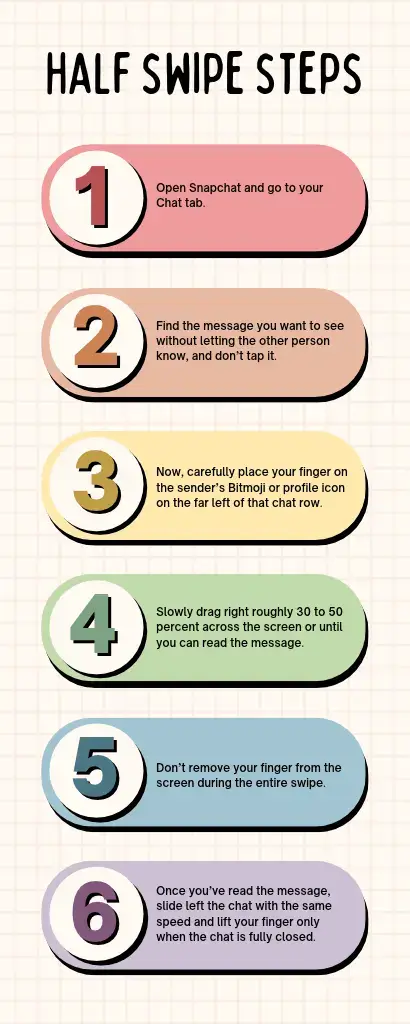
- Open Snapchat and go to your Chat tab.
- Find the message you want to see without letting the other person know, and don’t tap it.
- Now, carefully place your finger on the sender’s Bitmoji or profile icon on the far left of that chat row.
- Slowly drag right roughly 30 to 50 percent across the screen or until you can read the message.
- Don’t remove your finger from the screen during the entire swipe.
- Once you’ve read the message, slide left the chat with the same speed and lift your finger only when the chat is fully closed.
On Android
The half-swiping trick is challenging on Android, so slide the chat only 30 to 40 percent across the screen, as these devices detect small movements sooner, especially on newer Samsung models. Here’s how you can do it on Android:
- Open Snapchat and go to your Chat tab.
- Find the message you want to read.
- Place your finger on the sender’s Bitmoji at the left edge of the chat row and then drag slowly to the right.
- Now, read the message while keeping your finger on the screen the entire time.
- Once done, slide back at the same speed, then lift your finger only when the chat is fully closed.
On Snapchat Web
You can’t half-swipe on Snapchat in any way, as it doesn’t support touch-based gesture input. If you click the chat, it’ll open immediately, and the message will be marked as opened. This status change will be sent to the sender in real time, so there will be no going back. No browser extension or other Snapchat web settings can prevent this. So, if you want to read someone’s message without letting them know, use the mobile app.
Half Swipe on Group Chats
Half-swipe is also possible in group chat conversations, and the process is the same as you do in one-to-one chats. You can do it by pressing the chat with your finger in the chat list and dragging slowly to the right to reveal the latest message, read it, and then reverse in the opposite direction at the same pace while keeping your finger on the screen the entire time. Lift your finger only when the chat tab is completely closed.
However, a problem occurs when you have a dozen unread messages, as the chat row can display slightly differently in your chat list, and that layout change can affect where the safe swipe zone ends. Which is why you have to be more careful when performing a half-swipe on group chats; sliding the chat 30 percent of the screen width is recommended instead of 50 percent.
Another challenge occurs when a group member uses Snapchat Plus and has the peek-a-peek feature enabled. However, they still won’t know which member did the half-swipe and will only get a notification that someone peeked at a chat.

Peek a Peek Feature Explained
Peek a Peek is a Snapchat Plus feature that lets users know someone has peeked at a chat without fully opening it. As a result, two eyes appear next to the chat in the conversation. According to Snapchat support documentation, this feature requires both users to be active in the app and in the same chat feed at the exact moment you perform the swipe.
If you peek at a chat and your friend with a Snapchat Plus subscription isn’t active, no indicator will appear. You can check their profile for the green dot to confirm. It’s not a log that records your previous activity and shows later. The two eyes emoji also disappears after 24 hours, so there’s no permanent record of the activity.
It’s best to check for the Snapchat Plus badge before doing a half swipe on Snapchat. The gold star will be visible on their profile if they’re using Snapchat Plus. If there isn’t one, then there’s no detection on their end, and the standard rules apply. Also, if you take a screenshot, whether you open the chat fully or partially, it immediately notifies the sender. So, if you try to screenshot a message you previewed through half swipe, it’ll alert the sender even if the half swipe went undetected.
Feature | Half Swipe (Free) | Peek a Peek (Snapchat Plus) |
Stealth Preview | Allows you to quietly read chats without alerting anyone (if done right) | Not hidden; the other person might know if they use the Peek a Peek feature |
Works On | Regular text chats only | Both text messages and incoming chat notifications |
Alerts Sender | No | Yes |
Official Status | Not officially supported | Built-in Snapchat Plus feature |
Platform Support | Works on iPhone and Android | Available on all devices with a Snapchat+ plan |
Reliability | A little mistake and the message opens | Stable and intentional, since it’s officially designed |
Privacy Level | High, but you need steady fingers | Moderate |
Skill Needed | Take a bit of practice to get a perfect half swipe | No skills needed |
Why Half Swipe Fails
Swiping too Fast
The most common mistake people make during half swiping is dragging a chat too fast. A quick horizontal drag carries momentum that can push the chat out of the safe zone, marking the message as opened. So, practice slow, short swipes until you find the exact halfway point.
Lifting your Finger While the Chat is Partially Open
If you’re previewing a chat partially open and your finger suddenly lifts from the screen, the app will consider it a completed gesture and mark the message as opened. To avoid marking the message as opened, keep your finger on the screen the entire time and remove it only when the chat is fully reversed.
Swiping Too Far from the Left Edge
If you drag the chat from the middle of the row, then it’ll give you less room to work with, and hence you’ll reach the full open threshold sooner. However, sliding a chat from the profile icon or Bitmoji on the far left gives you much more room.
Media Snaps
Half swiping only works on text-based conversations. If someone sends you a chat with any type of media, such as photos or videos, and you try to half-swipe it, It’ll register as a full view and mark the message as opened. There is no technique to allow users to preview visual snaps without triggering notifications.
Device Sensitivity
If you’ve changed a device, then the swipe behaviour you were used to will not apply. You can fix it by lowering your touch sensitivity if it’s set too high, and practice half swipe in a throwaway chat before using it in the real chat tab.
Alternatives to Half Swipes
Lock Screen and Notification Previews
The safest way to preview a message without letting the other person know is to see it on your phone’s lock screen. When you receive a message, your phone displays it as a lock-screen notification or as a banner showing the sender’s name and the beginning of their message. However, it works best for short text messages because it shows only the first two lines, and the rest gets cut off.
Ensure your Snapchat notification shows message previews through your phone’s notification settings. If you’re using an iPhone, go to Settings > Notifications > Snapchat and then confirm that Show Previews is set to Always or when unlocked. If you’re an Android user, go to Settings > Apps > Snapchat > Notifications.
Airplane Mode Method
People use the airplane mode trick to preview messages because they assume cutting the internet connection will stop the read receipt from reaching Snapchat’s servers. They do this by simply turning on Airplane mode, opening Snapchat, reading the message, closing the app, and then turning off Airplane Mode.
However, this trick no longer works because Snapchat now saves the opened event locally on your device as soon as the chat becomes active, rather than waiting for the data to be sent from your phone. When your internet connection is active again, the saved notification will be sent automatically.
Screen Recording Trick
You can use screen recording to capture the unrevealed messages. You can do this by starting screen recording before opening Snapchat and then dragging the chat tab slightly to preview and record messages. Once done, stop recording and then exit. However, keep in mind this isn’t the safest option, as Snapchat may detect recordings, especially on newer devices.
FAQs
Conclusion
A half swipe on Snapchat lets you reveal text-based messages without marking them as opened. You can do this by simply pressing the chat you want to preview in the chat tab and then slightly dragging it to the right until you can read the message. Then reverse back to its previous position at the same pace, and then remove your finger only when the tab is completely closed. This method only works on text-based messages and doesn’t work on Snapchat web.
