
How to Unpin Someone on Snapchat?
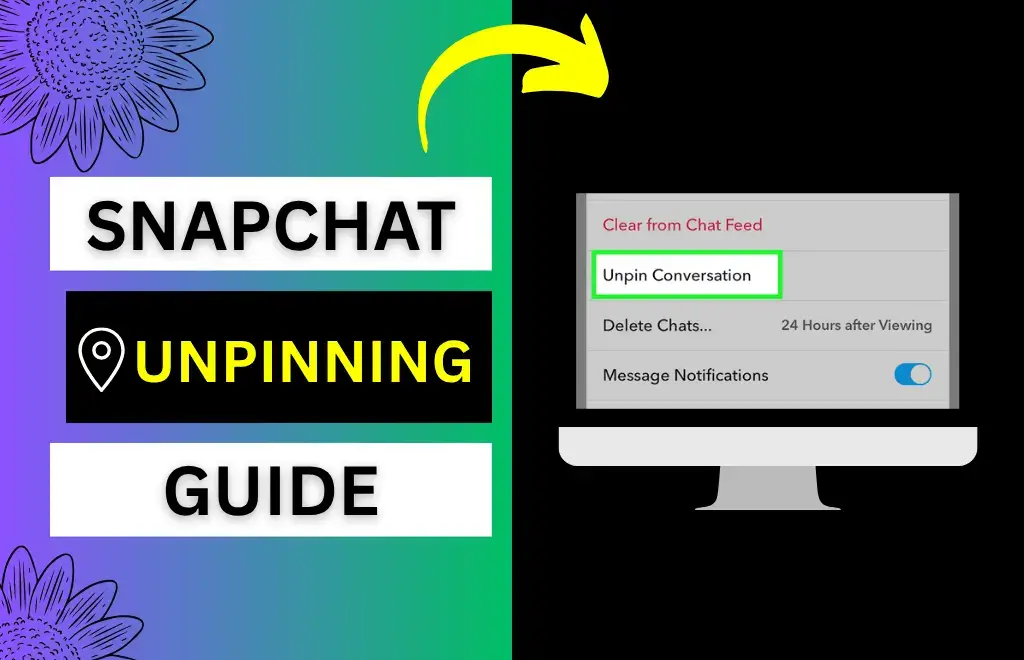
Has your Snapchat chat list become messy with too many pinned chats, and now you want to organize it by unpinning the unnecessary ones? Then this guide is for you. Unpinning someone on Snapchat is easy: press and hold the chat conversation.
This guide covers everything you need to know about how to unpin someone on Snapchat so you can keep your chat list organized. From walking you through the unpinning process to highlighting common mistakes, this guide has you covered. By the end of this article, you’ll know exactly how to unpin someone, avoid common mistakes, and manage your pinned conversations with ease.
What Does Pinning Mean on Snapchat?
If you’re a Snapchat Plus subscriber, you can pin a specific friend as your #1 Best Friend, and it’ll lock them at the top. Pinning someone on Snapchat is very helpful for best friends and important conversations that you don’t want to ignore.

Why Unpin Someone on Snapchat?
Changing Priorities
As time passes, your priorities change, so you may no longer talk to that person as often as you used to.
Chat List Clutter
If you pin too many chats, it looks messy, which most people don’t like and encourages people to unpin them.
New Close Friends
Since Snapchat lets you pin up to 3 chats, to pin a new close friend, you’ll need to unpin someone first.
Privacy Reasons
Since pinned chats are stuck at the top of the chat list, it can also create some concerns for privacy-conscious users.
How to Unpin Someone on Snapchat (Step-by-Step)
Step 1: Open Snapchat
Start by opening the Snapchat app on your phone.
Step 2: Go to the Chat Screen
Go to your chat screen by swiping right from the camera screen or tapping the chat icon at the bottom.
Step 3: Find the Pinned Chat
Find the pinned chat at the top, marked with the 📌 pin icon.
Step 4: Press and Hold the Chat
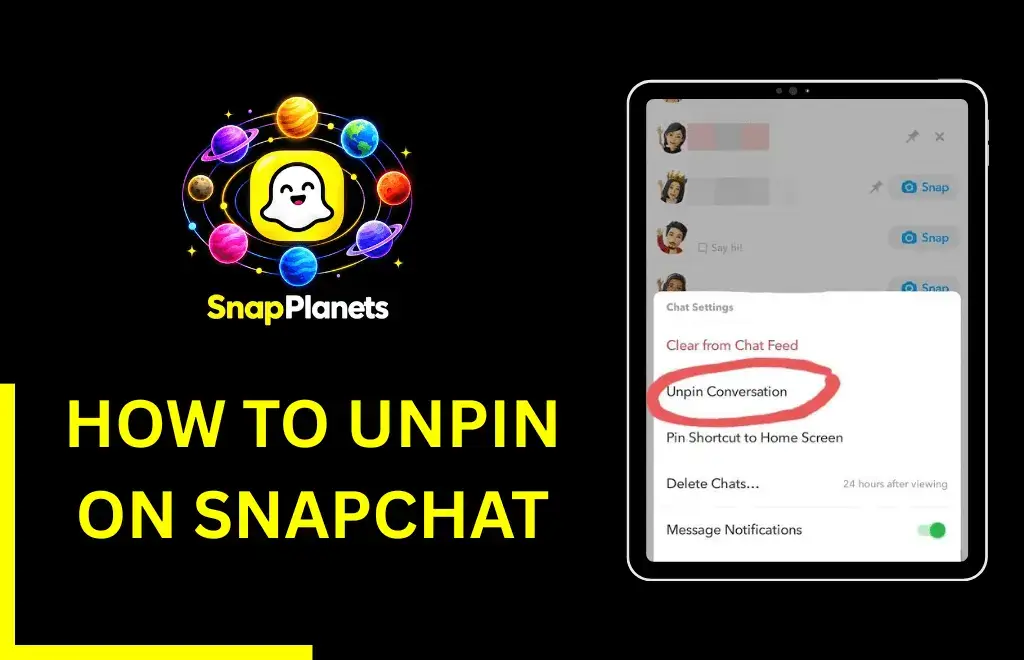
Now, tap and hold the chat you want to unpin. A menu will appear.
Step 5: Tap Chat Settings
From the menu, select Chat Settings.
Step 6: Tap Unpin Conversation
Tap Unpin Conversation, and the chat will instantly move back to its normal position.
Alternative Method to Unpin on Snapchat
- Tap and hold the pinned chat.
- Select Unpin Conversation from the menu directly without going into the chat settings.
What Happens After You Unpin Someone on Snapchat?
As soon as you unpin a conversation on Snapchat, the chat moves back into the regular chat list and sits where it should be depending on the recent activity. The 📌 icon also disappears, and they won’t get any notifications. Your messages and chat history will not be affected.
Can the Other Person See If You Unpin Them?
No, this action is completely private, and Snapchat doesn’t notify users when you pin or unpin them.
How to Pin Someone Again?
- Go to your chat list.
- Press and hold the conversation.
- Select Chat Settings and tap Pin Conversation.

Common Issues and Fixes
Unpin Option Not Showing
If the unpin option isn’t appearing, update the Snapchat app from the Play Store, then try again.
App Glitch or Lag
If you’re experiencing lag or glitches, close and reopen the app, clear the cache (if you’re an Android user), or restart your phone.
Feature Not Available
This problem may occur if you’re using an older version of Snapchat, as these versions may not support pinning/unpinning properly. To fix it, simply use the latest version of the app.
Tips to Manage Your Snapchat Chat List
Keep Only Important Chats Pinned
Only pin those chats that are important and avoid pinning too many conversations.
Regularly Review Pinned Chats
Frequently review your pinned chats and unpin chats if you no longer need them at the top.
Use Chat Settings
Use chat settings like mute, clear, and customize for better control.
Prioritize Active Conversations
Pin the chats or people you interact with daily.

What Is the Difference Between Pinning and Best Friends
Many users confuse pinned chats with Snapchat’s Best Friends feature, but they’re completely different. Below is the table differentiating between pinning and Best Friends:
Feature | Pinning | Best Friends |
Manual Control | Yes | No (algorithm-based) |
Visibility | Only visible to you | Visible in emoji indicators |
Purpose | Quick access | Interaction tracking |
FAQs
Conclusion
Unpinning someone on Snapchat is easy, and you might do it for a few reasons. You can do it by pressing and holding the chat conversation. The menu will appear; then select Chat Settings and tap Unpin Conversation. Most app versions don’t even require you to go to Chat Settings; the menu lets you unpin a chat directly. Now you know how to unpin someone on Snapchat; you can easily keep your chat list organized by removing unnecessary pinned chats.
