
How to Enable Snapchat Dark Mode & Fix Common Issues (Complete Guide)
Do you find your screen unnecessarily bright while using Snapchat at night and want an easier-to-use app? Then Snapchat’s dark mode is what you’re looking for. This feature not only reduces eye strain but also saves significant battery power, making it useful for many users.
This guide covers all the key aspects of Snapchat dark mode so you can use the app easily, especially in low-light environments. From explaining what it means to showing you how to enable it on your phone or desktop, this article has your back. So, without wasting time, let’s dive in!
What is Snapchat Dark Mode?
Dark mode is also available on Snapchat web. It doesn’t affect any functions or features; it just changes your app appearance. Once enabled, your stories, chats, and camera section will switch to a dark theme.
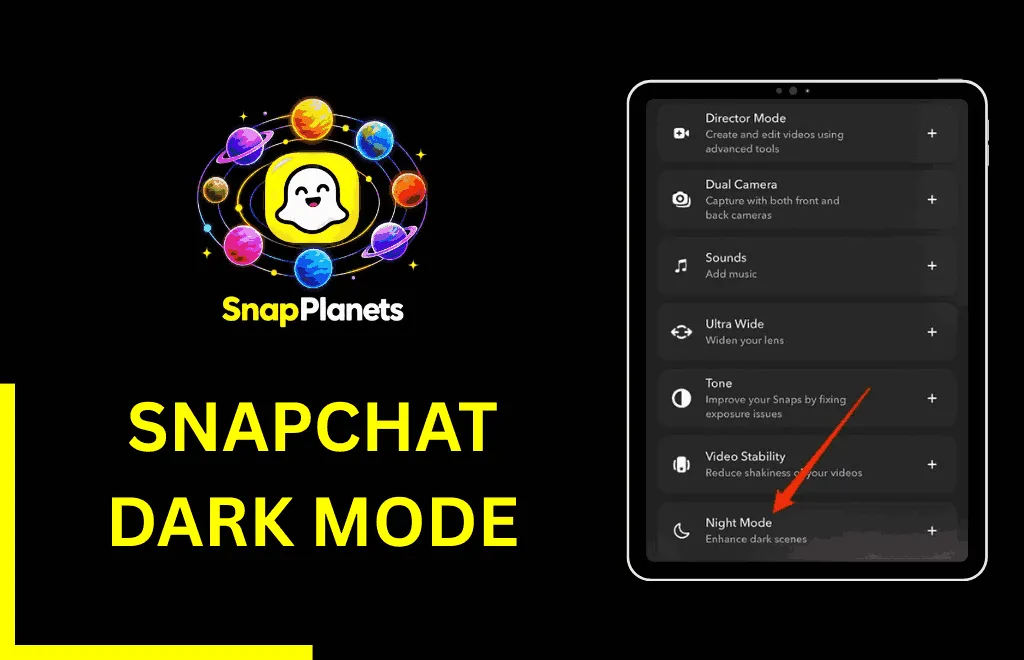
How to Turn on Dark Mode on Snapchat?
Android
Follow the steps below to enable dark theme in Snapchat on Android, such as Samsung and other devices:
- Open Snapchat and tap your profile icon in the top-left corner.
- Navigate to Settings by tapping the gear icon.
- Now, find the App Appearance option under Shortcuts.
- Choose between the System Dark or Always Dark options.
- Tap the Apply Theme option or restart if asked.
- Snapchat will now open with a dark theme.
iPhone
Follow the steps below to change your white colored theme to dark on Snapchat using iPhone:
- First, open the Snapchat app and tap your Bitmoji or profile icon in the top-left corner.
- Go to Settings by tapping the gear icon.
- Select App Appearance under Shortcuts.
- Now choose System Dark, Always Dark, Follow System Theme, or Match System if you want Snapchat to follow your iPhone’s current settings.
- Hit the Apply Theme option to change your Snapchat appearance.
How to Turn On Dark Mode on Snapchat Web?
- Open Snapchat for the Web and sign in.
- Once signed in, click your Bitmoji in the top left corner.
- Select Theme and choose Always Dark or Follow System Theme to match your computer’s appearance.
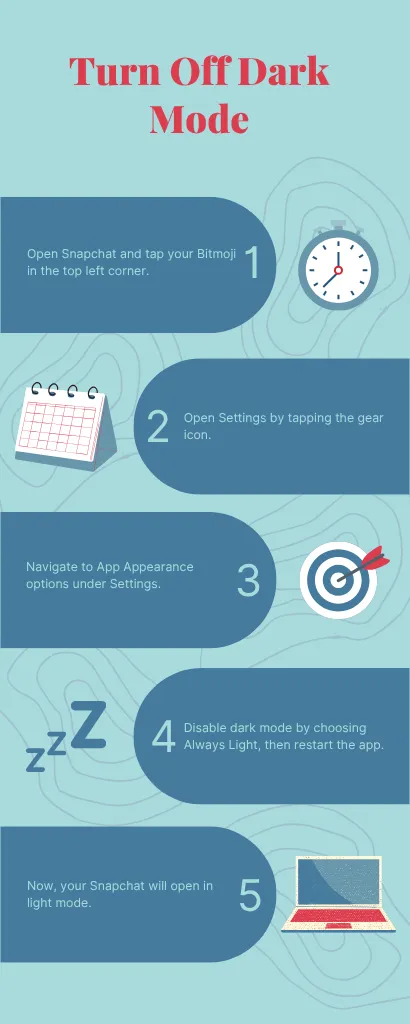
How to Turn Off Dark Mode on Snapchat
- Open Snapchat and tap your Bitmoji in the top left corner.
- Open Settings by tapping the gear icon.
- Navigate to App Appearance options under Settings.
- Disable dark mode by choosing Always Light, then restart the app.
- Now, your Snapchat will open in light mode.
Why is My Snapchat Dark Mode Not Working?
Snapchat’s dark mode not working is a common problem, and it happens for these reasons. First, if you select the System Dark option instead of Always Dark and your device isn’t set to dark mode. Your app will only turn into dark mode if your device settings are set to dark mode.
Second, this might happen if you’re using an older version of the app, especially on an older device that hasn’t received recent Snapchat updates. Simply check for updates in the App Store or Google Play Store. You can also uninstall and reinstall the app if nothing works, as it can clear a stuck setting.
Does Snapchat Have a Separate Night Mode App or APK?
Yes, a few modified third-party apps are available online that change your Snapchat appearance to dark mode. However, Snapchat doesn’t approve these apps, and they can expose your personal data or compromise your account security. Using a modified version of the app violates Snapchat’s policy and may lead to an account ban. So avoid these apps, since you can turn your Snapchat into dark mode directly in the app.
What to Do If App Appearance is Missing
- Update your app from the App Store or Google Play Store.
- Close and reopen your Snapchat app.
- Restart your phone.
- Check Settings > App Appearance again.
Benefits of Using Dark Mode on Snapchat
- Minimize eye strain: If you spend a lot of time on your screen, dark mode can help reduce eye strain, especially in low-light environments.
- Save battery: Enabling dark mode saves significant battery power on devices with OLED or AMOLED displays, as it reduces the power used by light pixels.
- Reduce blue light exposure: Dark mode reduces the exposure to blue light in the evening and at night.
FAQs
Conclusion
Snapchat dark mode is a built-in feature that lets you change the app appearance from bright white to black and gray. Switching from light to dark mode has several benefits, including reducing eye strain, saving battery power, and more. This can help because, according to statistics, people worldwide spend an average of 5 hours and 16 minutes on their phones every day.