
What is Snapchat Ghost Mode? How it Works & When Should You Use it?
Are you a privacy-conscious Snapchat user who doesn’t want to share your location but doesn’t know how? Then ghost mode is what you’re looking for. This feature allows users to stop sharing their current or previous location by hiding their Bitmoji on Snap Map. No one, even your friends, can see where you were or where you’re now.
In this guide, we’ve covered all the nitty-gritty details of Snapchat Ghost Mode so you can protect your privacy, control who can see your location, and use Snapchat with greater peace of mind. We’ve also shown you how to turn on this feature, and by the end of the article, you’ll be able to manage your location-sharing preferences easily.
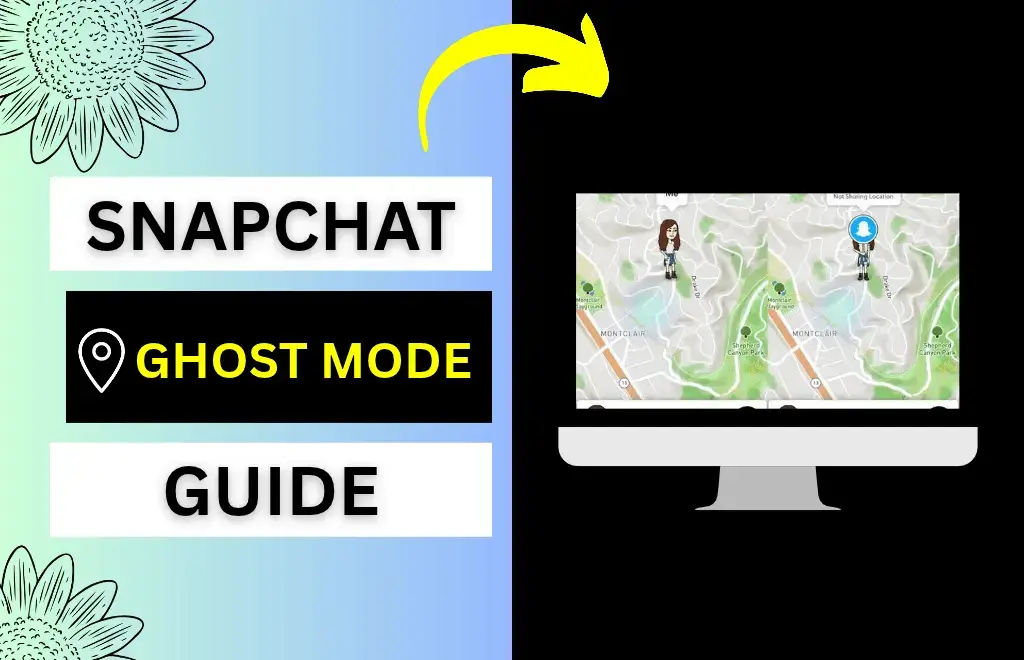
What Is Snapchat Ghost Mode?
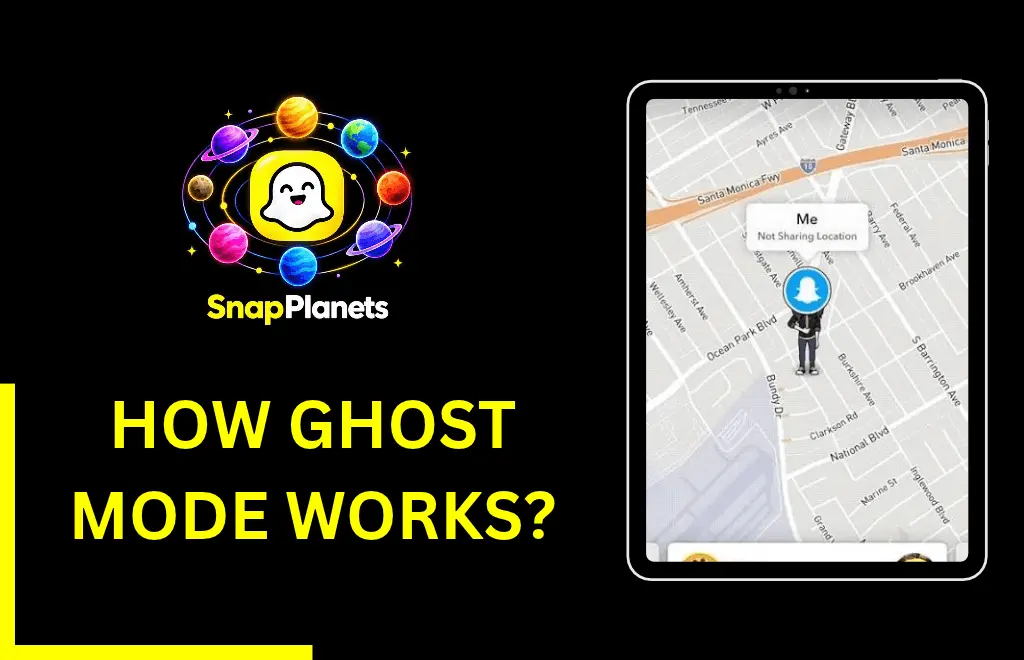
How Does Ghost Mode Work?
- Your location gets completely hidden from everyone.
- Your bitmoji doesn’t appear on the Snap Map.
- You can still access Snap Map.
- You can still view your friends’ locations on Snap Map.
- You can send snaps or messages normally.
- Your friends can’t track your current location.
Why Do People Use Ghost Mode?
For Better Privacy
Many users prefer to stay private and don’t want others to know where they were yesterday or where they are now.
For Personal Safety
Most users don’t want unwanted attention from people who know their routine. Ghost mode can help you reduce this by keeping your location private.
For Traveling
Many Snapchat users enable this feature while traveling because they don’t want others to see their live location.
For School or Work
Many users have their classmates or coworkers as friends on Snapchat. That is why they enable ghost mode: they don’t want others to know where they spend their time.
For Family Privacy
Parents also recommend that their children enable ghost mode to avoid sharing their location unnecessarily.
How to Turn On Ghost Mode on Snapchat
- Open Snapchat and tap your bitmoji in the top-left corner
- Tap the Snap Map icon.
- Now, tap the Settings (Gear) icon.
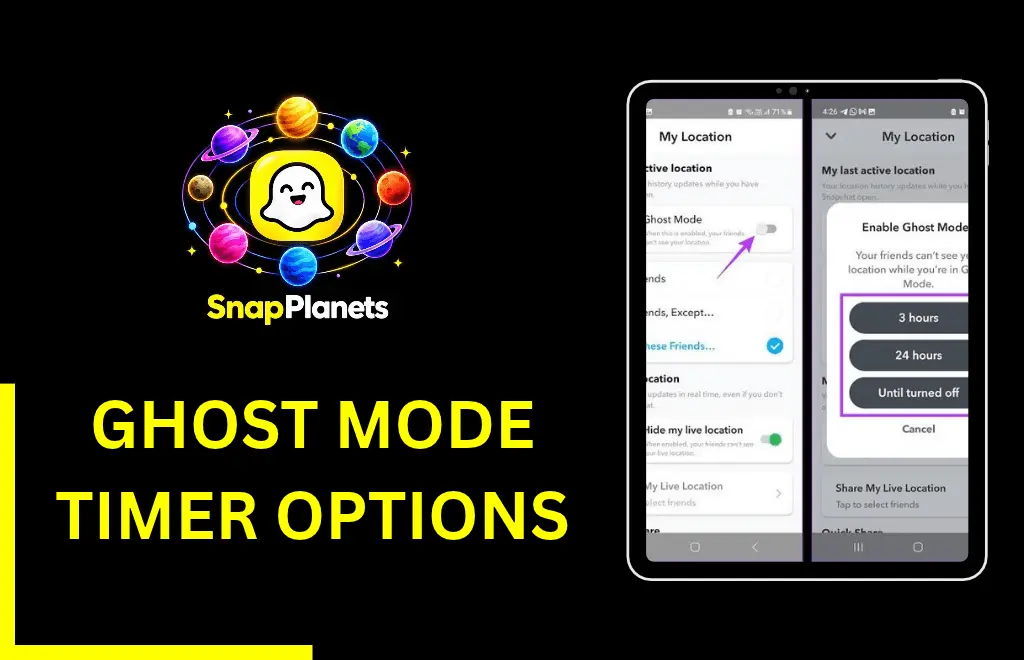
- Turn on the Ghost Mode option.
- Select the timer for how long you want to stay in ghost mode, with options including 3 hours, 24 hours, or until you turn it off.
Can You Still See Other People’s Locations?
No, Snapchat doesn’t send messages, notifications, or alerts to your friends when you enable Ghost Mode. It simply hides your bimoji on the Snap Map.
Ghost Mode Timer Options
3 Hours
The first timer option keeps you invisible for 3 hours. It’s perfect if you’re going out for a short time and don’t want others to know about it.
24 Hours
The second timer option hides your location for 24 hours, making it ideal for day trips, events, or vacations.
Until Turned Off
If you’re serious about privacy, this option is for you, as it keeps your location private until you turn the feature off yourself.
Ghost Mode vs Turning Off Phone Location
Many people confuse Ghost Mode with your phone’s location. Below is the table explaining both of them:
Ghost Mode | Turn Off Phone Location |
Hide location only from Snapchat users | Disable location for the app completely |
Snap Map still works | Snap Map cannot update location |
Easy to turn on or off | Requires changing phone settings |
Best for privacy | Best for not sharing location completely |
Does Ghost Mode Turn Off Location Services?
No, this is a common misunderstanding about Ghost Mode. This feature only hides your location from other Snapchat users. It doesn’t turn off your phone’s location services unless you disable them yourself in your device settings.
Does Ghost Mode Affect Snapchat Plus?
No, Ghost Mode doesn’t affect Snapchat Plus features, and you can enjoy every premium feature while using ghost mode. Your subscription doesn’t affect your privacy settings.
Can Snapchat Still See Your Location?
Snapchat can still see your device location, even in ghost mode, if you’ve granted location permission or use location-dependent features. However, ghost mode only prevents others from seeing your location. Still, it can’t stop Snapchat from accessing your location data, which is needed for services such as filters, local content, or technical functions. If you don’t want Snapchat to access your location, you can manage app permissions in your phone’s settings.
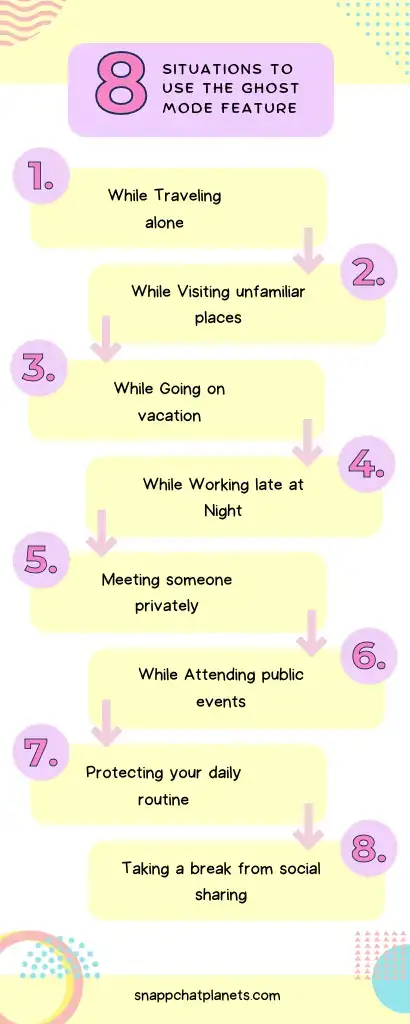
When Should You Use Ghost Mode?
- Traveling alone
- Visiting unfamiliar places
- Going on vacation
- Working late
- Meeting someone privately
- Attending public events
- Protecting your daily routine
- Taking a break from social sharing
Troubleshooting Ghost Mode
Your Bitmoji Still Appears
If your bitmoji still appears on Snap Map, close and reopen Snapchat again. If the issue persists, make sure the setting is turned on.
Location Keeps Updating
Double-check your Snap Map settings and check whether Ghost Mode is enabled or not. If you’re using an outdated version of the app, consider updating it.
Can’t Find Snapchat Ghost Mode
If you can’t find the Ghost Mode option on Snapchat, you may be using an older version of the app. Make sure to update the app from your device’s app store.

Tips for Better Privacy
- You can create a private story for only selected friends.
- Check who can contact you.
- Choose who can see your location.
- Ensure the Snapchat app is updated.
- Regularly review your privacy settings.
- Avoid sharing private information in public Stories.
FAQs
Conclusion
Snapchat ghost mode is an amazing privacy feature that lets users stop sharing their location on the Snap Map without notifying others. Once you enable it, your Bitmoji won’t appear on the map, and others won’t be able to see your current or past locations. This feature offers several benefits, the biggest being better privacy and safety. You can walk around freely knowing others don’t know where you were or where you’re right now.
